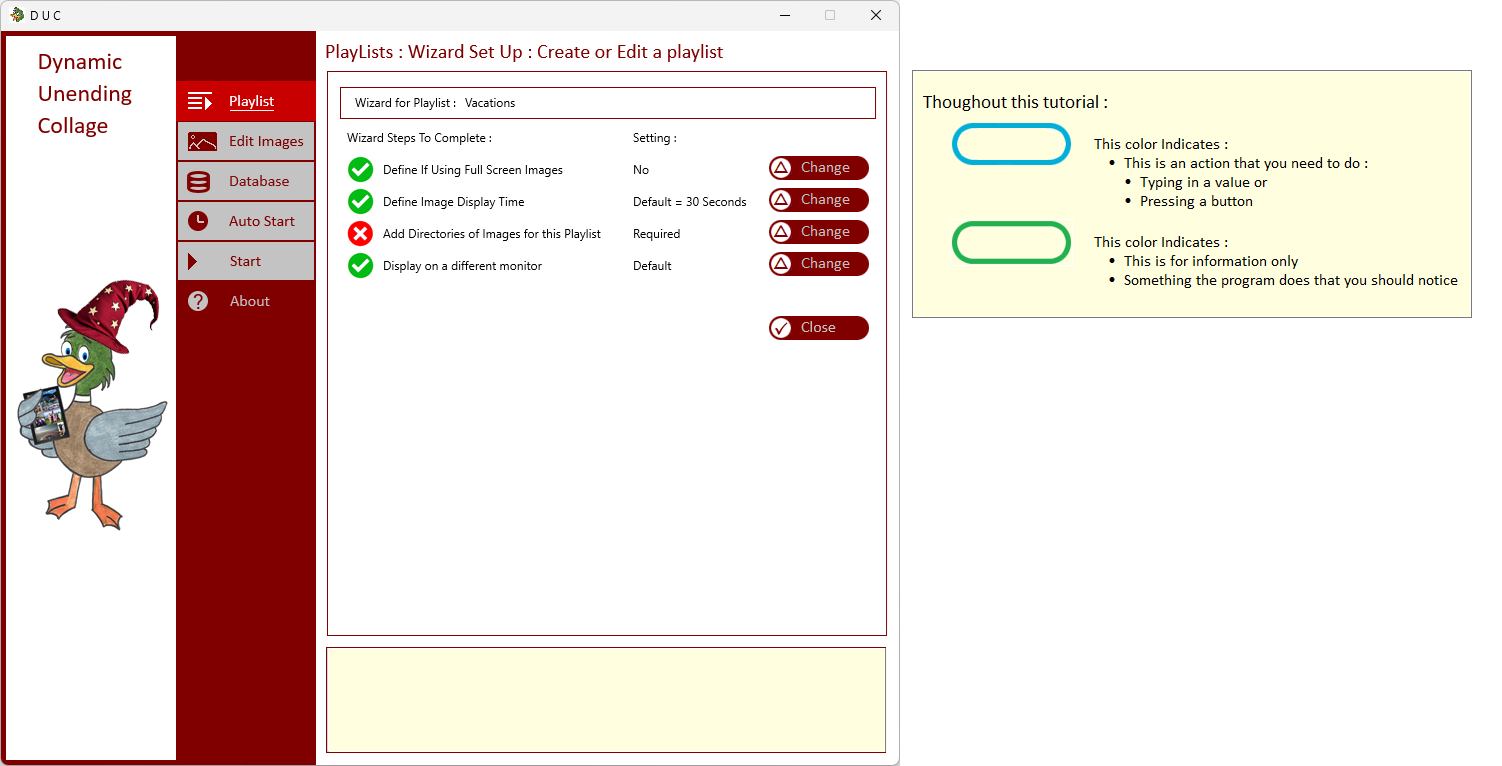
| Adding or Modifying a Playlist : the DUC application will go to the Wizard Mode : | |
|
| |
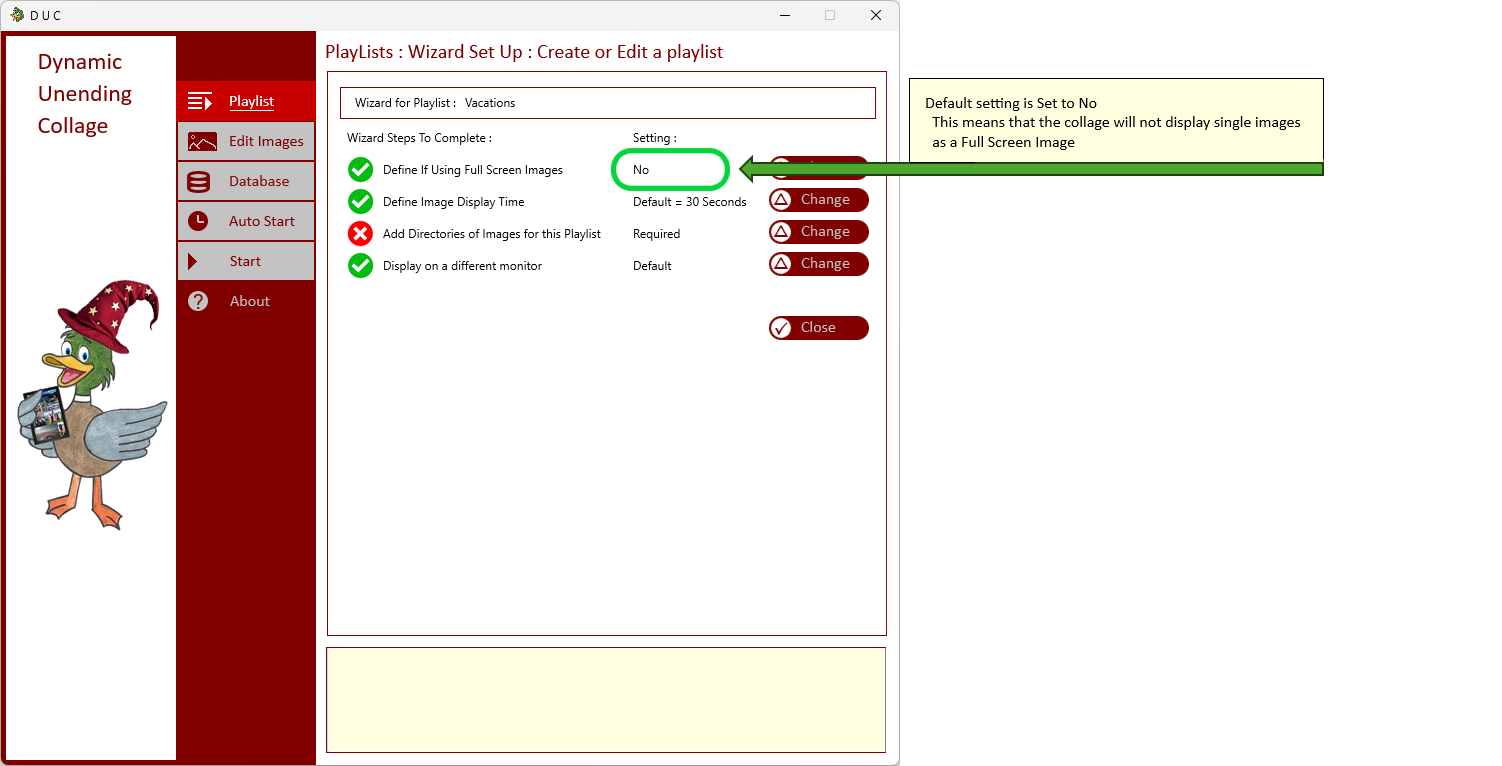
| If you would Like to Add Images that fill the entire Screen, then change the Default setting : | |
|
| |
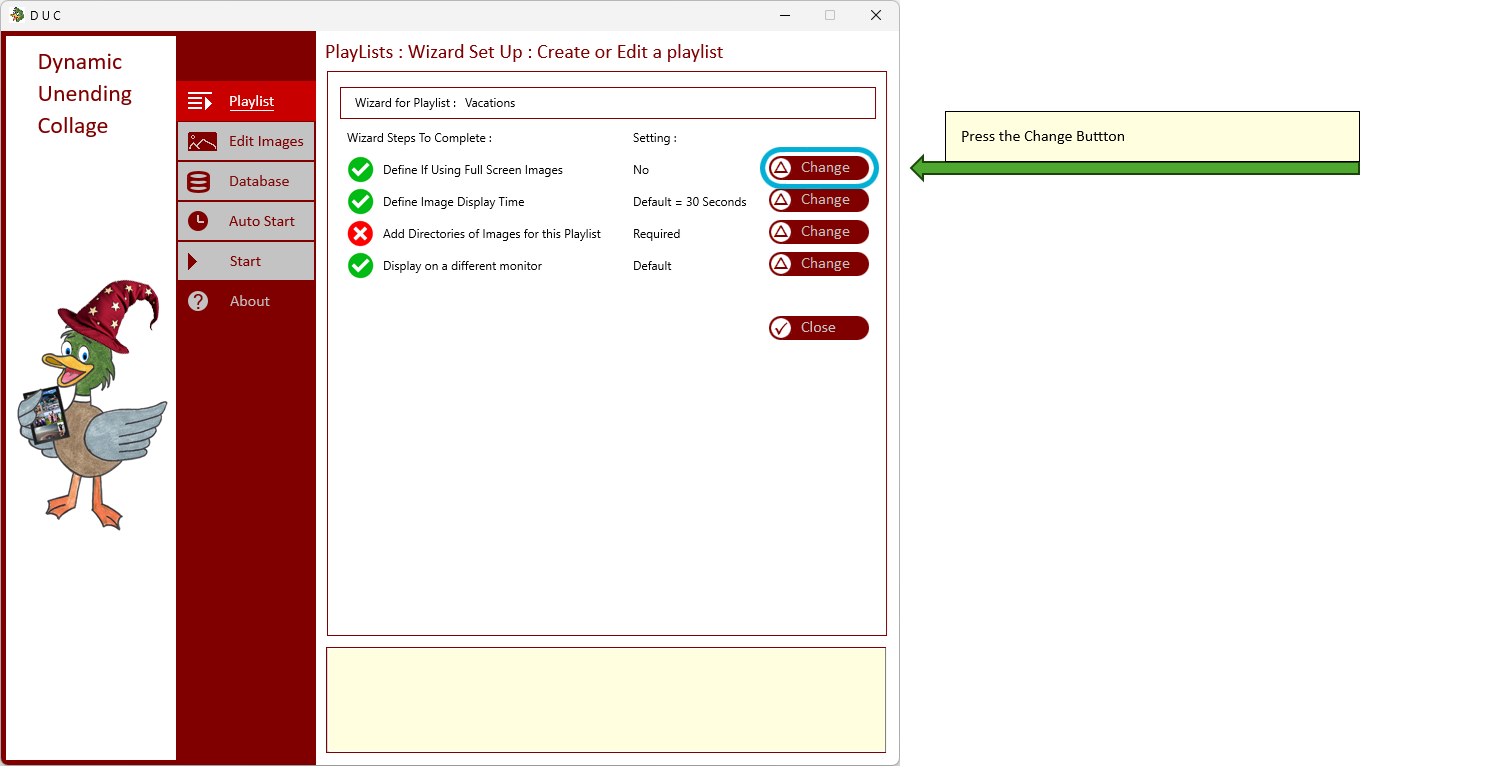
| Select Change : | |
|
| |
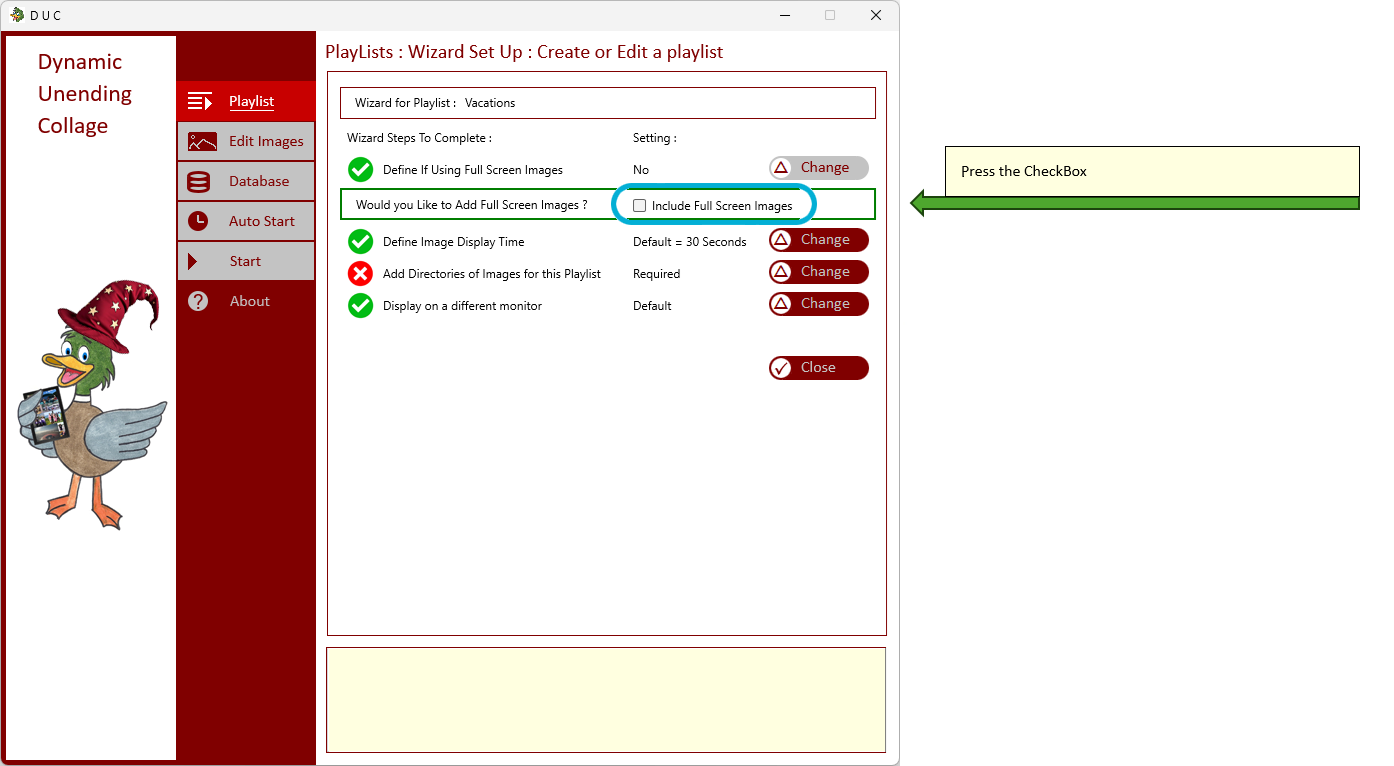
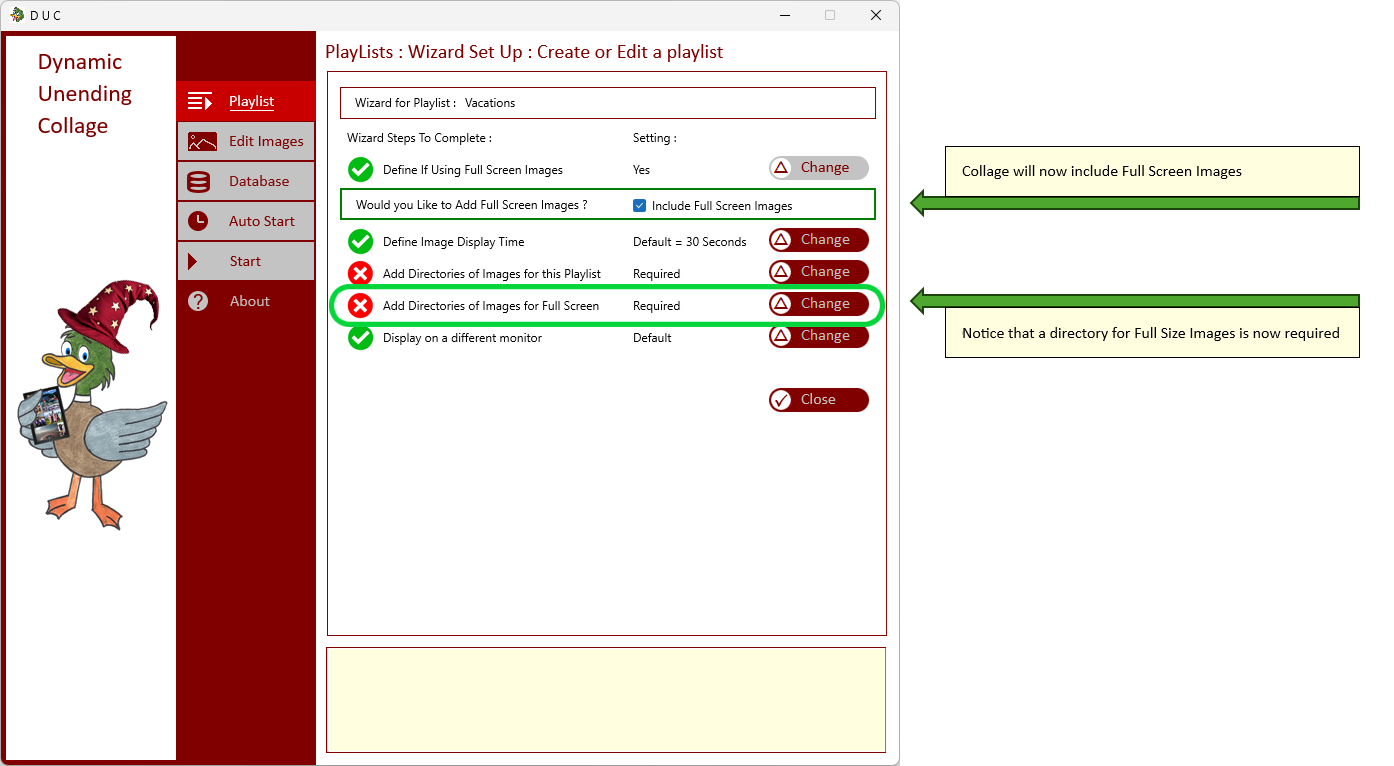
| Select The Checkbox : | |
|
| |
| And you will now be able to add directories of images that will be displayed as a Full Screen Image | |
|
| |
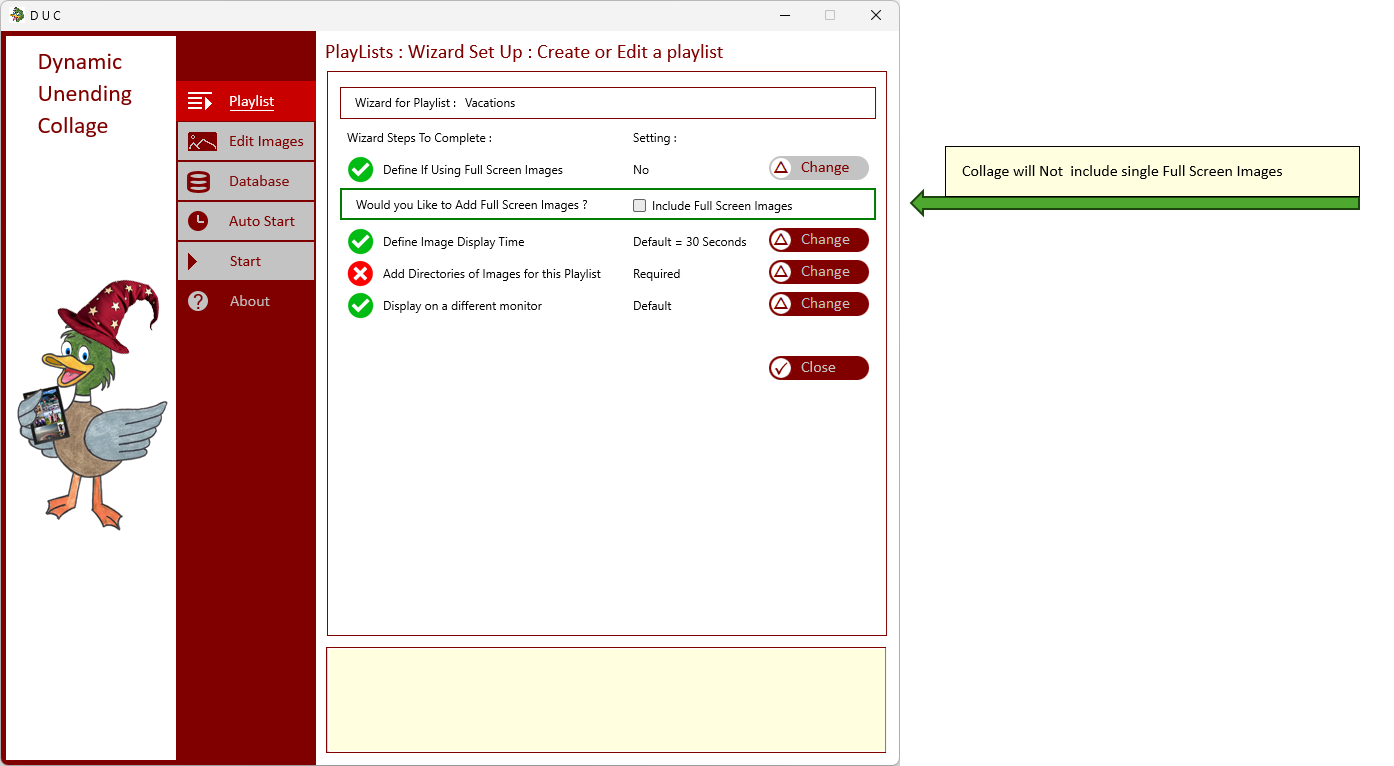
| At any time - Full Screen Image display can be removed by Unchecking the CheckBox | |
|
| |